Troubleshooting guide · 4 min read
Why Won’t My Robot Mower Connect to Wi-Fi?
Start by noting what failed: adding the mower, getting an online status, or sending a command from indoors. Then follow the instructions for the exact model and generation. A Wi-Fi problem, a Bluetooth pairing problem and a positioning warning can need different fixes.
Based on published manufacturer information.
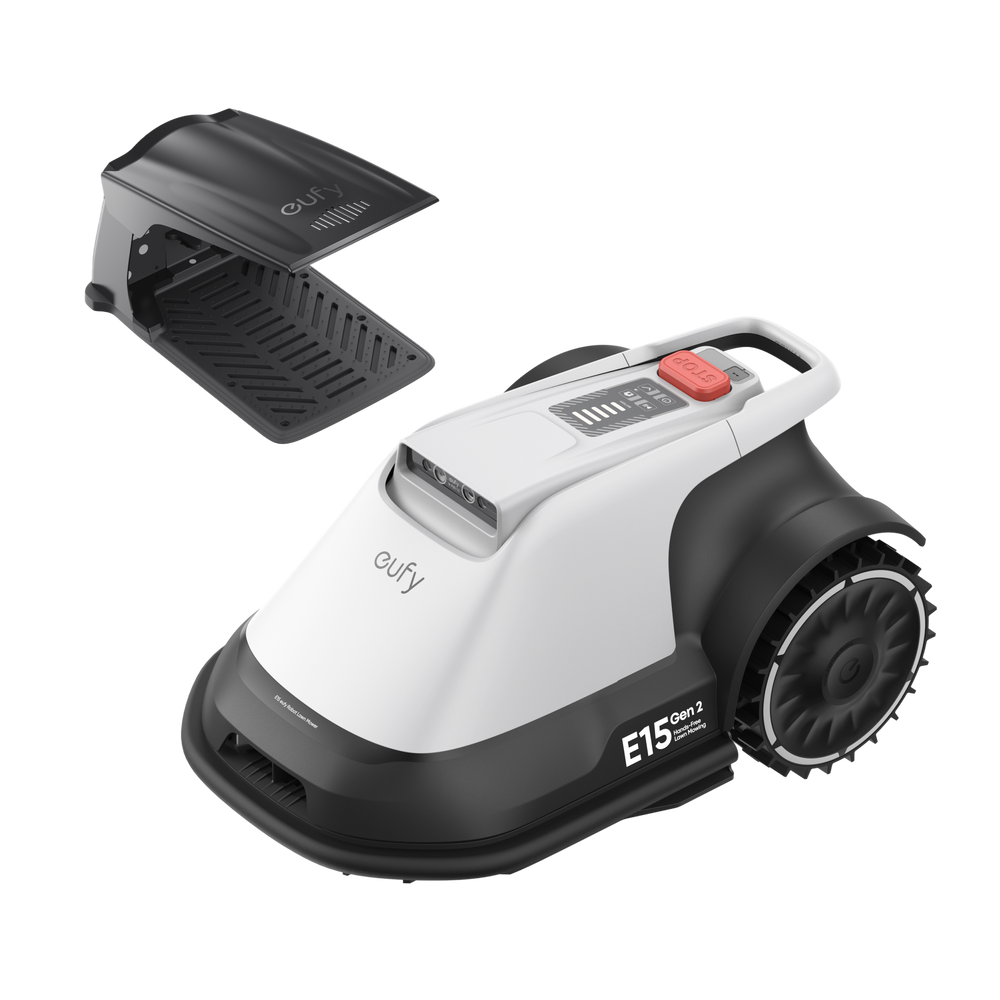
Checked Nov 27 · In stock when checked. Shipping and tax at checkout.
Buy at Lowe’s See all offers & model details ↗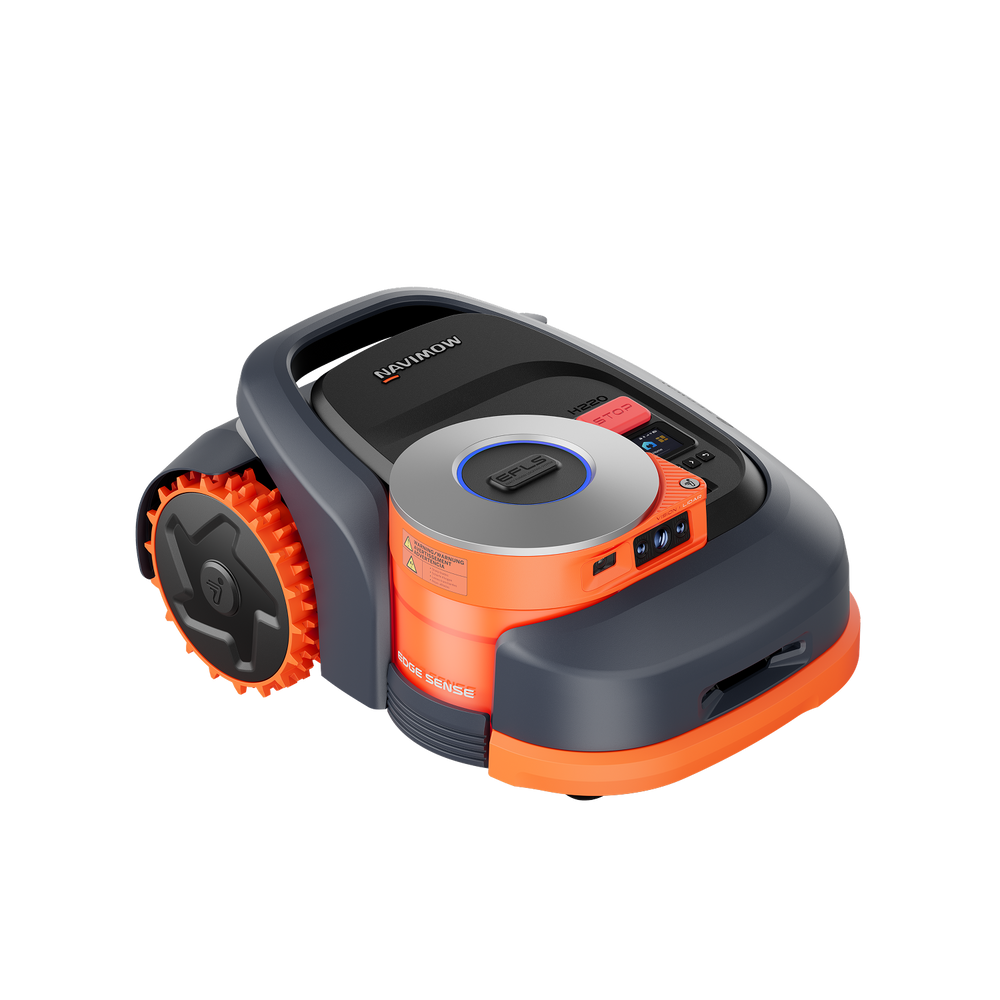
Checked Nov 27 · In stock when checked. Shipping and tax at checkout.
Buy at Lowe’s See all offers & model details ↗We may earn a commission when you buy through these links.
Our recommendations come from published specifications. We may earn a commission from qualifying purchases. As an Amazon Associate, we earn from qualifying purchases. How we work
The quick verdict
Here’s where we’d start.
Check the failed stage before resetting anything. E15 Gen 2's manual asks for 2.4 GHz Wi-Fi during setup and names its exact app device entry. H2's manual separately provides Wi-Fi-only, 4G-only and automatic network choices. Use those model-specific steps, check the station and service state, and save the exact error. A generic reset combination or another mower's supported bands isn't a reliable substitute for the current manual.
E15 Gen 2
The T280L manual identifies the Gen 2 app entry and requires the router’s 2.4 GHz signal to be enabled.
Use the Gen 2 instructions. Radio specifications and an older E15 walkthrough do not replace its setup steps.
H210
The H2 manual separates Bluetooth connection from Wi-Fi-only, 4G-only and automatic network settings.
Check the actual setting and valid service before assuming the mower should be using Wi-Fi.
Write down the point where it stops working.
Has the mower never appeared in the app, or did it go offline after previously working? Does the problem happen at the station, across the lawn, or only when you try a remote command? Note the message and lights before changing settings.
An offline app display alone doesn't diagnose why the machine stopped mowing. If it won't begin a task at all, our mower-starting guide covers the separate operating checks. A positioning warning also needs its own diagnosis.
Choose the right model in the app.
For eufy E15 Gen 2, the T280L manual specifies the app path Add Device, Clean, Robot Lawn Mower, then Robot Lawn Mower E15 Gen2. It also asks for the router's 2.4 GHz signal to be enabled before setup. Follow the current in-app instructions from there.
Don't turn that into a rule that every mower supports only 2.4 GHz. Use your exact generation's setup requirement. Our E15 versus Gen 2 comparison helps identify which machine and instructions you have.
Check which connection the mower is trying to use.
The Navimow H210 H2 manual separates its phone Bluetooth connection from network access. Its Network Settings let you choose Wi-Fi only, 4G only, or automatic switching according to connection quality. Check that setting before troubleshooting an assumed Wi-Fi connection.
Bluetooth being connected to a nearby phone doesn't establish that remote internet access works. Nor is an internet connection the same thing as a valid navigation position. Our whole-yard Wi-Fi guide explains those different jobs.
Check coverage where the mower actually needs it.
Test the documented setup at the approved station location and note whether the failure is limited to one part of the lawn. Good phone reception in the kitchen doesn't settle what happens beside the mower.
Eufy's current Gen 2 page suggests a mobile hotspot for initial setup when Wi-Fi coverage is limited, followed by its supported 4G arrangement. That's a model-specific setup option, not a promise that a temporary phone hotspot covers future remote use. Keep station requirements in view with our charging-station guide.
If the connection drops only during an update, use the firmware guide to check the signal at the dock, battery and upcoming tasks.
Check the data service separately.
Eufy describes cellular data for commands when Wi-Fi is unavailable and for tracking, with its own plan terms. H2's manual also makes some anti-theft functions dependent on a working 4G service. A failed remote feature may therefore need a service check alongside the Wi-Fi check.
Confirm what is activated, included and still valid for the exact account and mower. Don't assume an included positioning service pays for every online function. Our subscription guide separates those costs.
Save the error before resetting the connection.
Keep the full model, app and firmware versions, failed stage, network mode and any recent router or phone changes. Say whether the mower connected before and what still works locally. That gives support a useful starting point.
Use the exact manual if a connection reset is needed. Eufy's manual lists Wi-Fi reset and factory restoration as separate commands, with button diagrams; don't copy an incomplete combination from another model. If the problem is the journey home, our return-to-station guide addresses that symptom.
A closer look
The differences, in view.
Scroll horizontally on smaller screens. Values are manufacturer claims; see each product for qualifiers and original wording.
| Specification | E15 Gen 2 | H210 |
|---|---|---|
| Rated lawn coverage | 0.2471 acresNormalized from 1,000 m² manufacturer coverage claim; not per-charge coverage. | 0.25 acreRecommended model-specific lawn size, not the expanded mapping allowance. |
| Maximum slope | 18 °Visible mower setup FAQ; boundary-slope limit not specified. | Not confirmed |
| Navigation | TrueVision camera navigation | LiDAR + network RTK + vision |
| Boundary setup | No perimeter wire or RTK stationManufacturer configuration claim, not a guarantee of signal reliability. | Not confirmed |
| Connectivity | Wi-Fi setup; 4G supportedThe page does not establish this generation’s data subscription terms. | Not confirmed |
| Cutting height | 1–3 inE15 Gen2 T280L user guide, section 2.4; not transferred from the original E15. | Not confirmed |
| Cutting width | 8 inE15 Gen2 T280L specification table. | Not confirmed |
Ready to choose?
Your next step, made simple.
Checked Nov 27 · In stock when checked. Shipping and tax at checkout.
Buy at Lowe’s See all offers & model details ↗Checked Nov 27 · In stock when checked. Shipping and tax at checkout.
Buy at Lowe’s See all offers & model details ↗We may earn a commission when you buy through these links.
Show your work
Sources & editorial method.
We reviewed official US product information and exact configurations. Our advice draws on published specifications and model-specific manufacturer instructions, with the practical trade-offs explained. Unknowns and conflicting claims are kept visible. Prices above come from the catalog and may change independently of this article’s review date.
- Manufacturer US model page — exact model specifications, equipment and operating qualifications
- Manufacturer US model page — exact model specifications, equipment and operating qualifications
- eufy E15 Gen 2 T280L manual — exact app selection, 2.4 GHz setup requirement and separate connection/reset functions
- Navimow H2 US manual — Bluetooth setup, Wi-Fi/4G network selection and connected-service requirements
Published Nov 3, 2026 · Editorial review Nov 10, 2026.
Read our research standardsKeep exploring
A little more perspective.
Why Won’t My Robot Mower Start?
A blank display, a locked control panel and a mower waiting for its schedule need different checks. We'd record the status first, then work through power, normal start controls, locks and the permitted operating conditions before assuming a motor has failed.
Read the guide
Do Robot Mowers Need a Subscription? 4G, RTK and App Costs Explained
A free app, included cellular data and lifetime positioning are different promises. We'd ask which features you need, how they connect and what happens when an included period ends before comparing the long-term cost of a mower.
Read the guide