Ownership guide · 4 min read
Why your robot mower is not following its schedule
A mower sitting on the charger at the planned start time may be waiting on weather, following a different task or using the wrong clock. Read its status before changing the schedule.
Based on published manufacturer information.
Checked Nov 27 · In stock when checked. Shipping and tax at checkout.
Buy at Lowe’s See all offers & model details ↗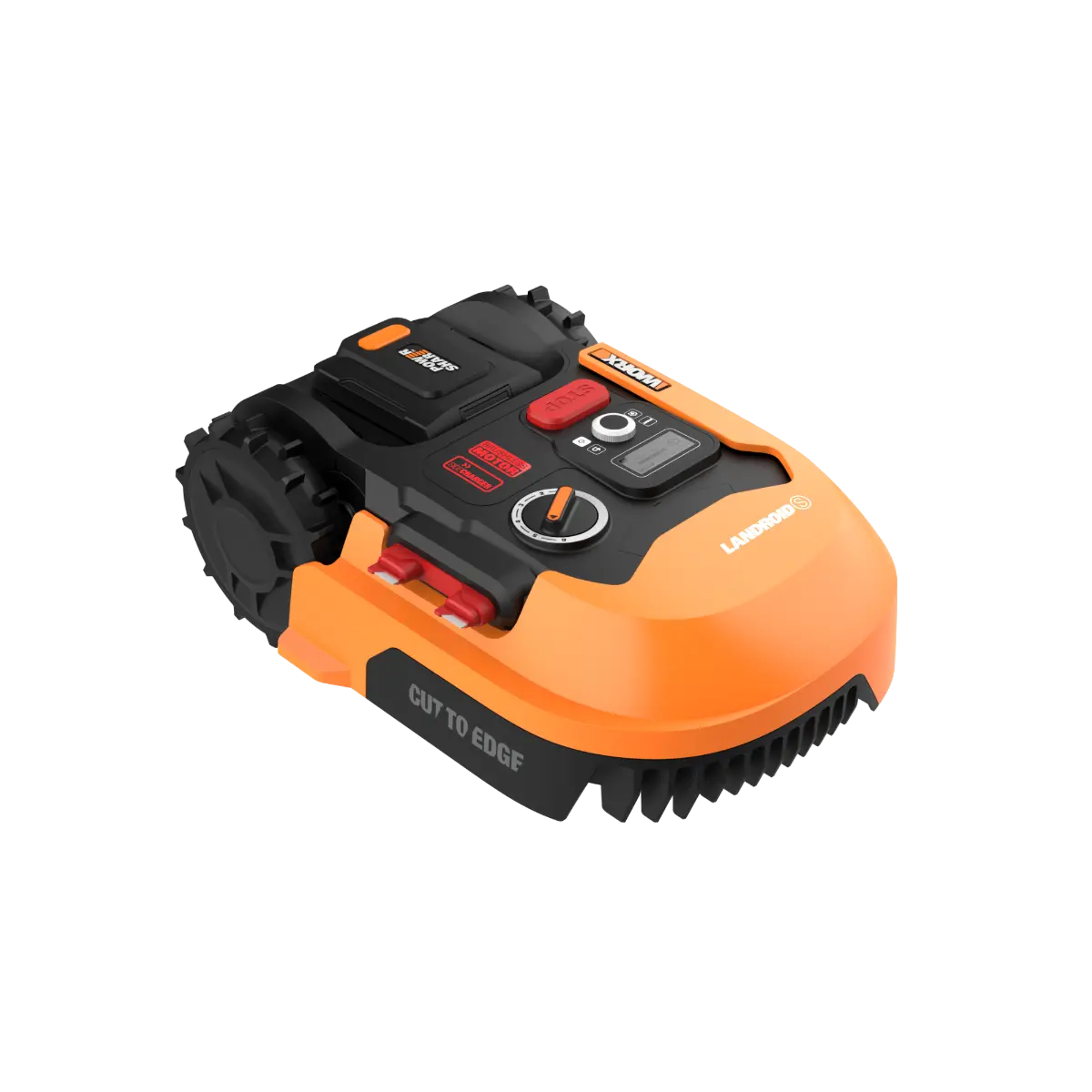
Checked Nov 27 · Availability unconfirmed. Shipping and tax at checkout.
Buy at Lowe’s See all offers & model details ↗We may earn a commission when you buy through these links.
Our recommendations come from published specifications. We may earn a commission from qualifying purchases. As an Amazon Associate, we earn from qualifying purchases. How we work
The quick verdict
Here’s where we’d start.
Check the displayed status, enabled day, local clock and assigned zone first. Then inspect weather delays and any unfinished manual task using the exact model’s instructions. Keep fault diagnosis separate from normal schedule restrictions; deleting the map is not a first step.
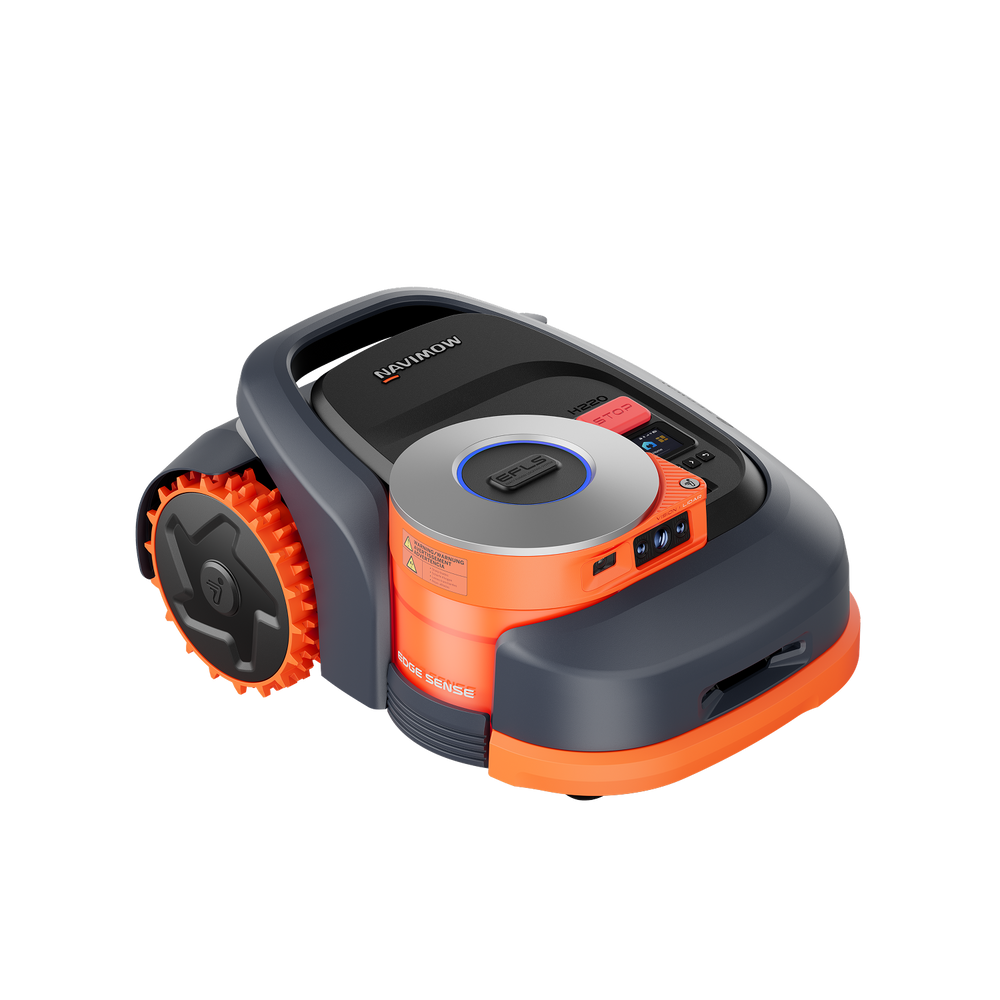
H210
The US manual documents zone schedules and local time settings; H2 support explains weather delays and one-time task priority.
H2 instructions do not establish the same controls for every Navimow generation.
Landroid S 1/8 Acre · WR165
The WR165/WR147/WR155 US manual distinguishes date/time setup, scheduling and a no-working-time status.
Read the exact mower’s display and software instructions before changing work-time settings.
Write down what the mower says it is doing
Start at the mower and in the app. Record its status, battery indication, any error and the next planned start. A weather delay and a charging fault can both leave a robot on the base, but they need different responses.
For a fault or a failed permitted start, follow not-starting diagnosis or charging diagnosis. Do not keep issuing new tasks before reading the existing one.
Check the day, enable switch and zone
For Navimow H210, the H2 US manual directs owners to Home > Settings > Mowing schedule. Check the selected day, start and end times, assigned zones, saved settings and schedule enable switch.
An isolated H2 zone supports one-time tasks rather than scheduled operation. If the missing job is in a separate grass area, compare the separate-lawns guide with the actual map.
Read the mower’s clock after a time change
H2’s manual includes time-zone, country and daylight-saving settings. A correct-looking 10 a.m. entry can still fire at the wrong local time if those settings are wrong.
The US WORX WR165 manual separately documents date/time and day-by-day scheduling. It also identifies a status meaning no working time is programmed. Check the saved program on the exact mower rather than assuming the phone clock proves it is correct.
Look for a delay that is doing its job
H2 support says its enabled forecast feature checks weather at ten-minute intervals. Forecast conditions or its rain sensor can return it to the station; the configured rain delay affects resumption.
Check the reason and remaining delay before changing anything. A dry patio does not establish dry grass. Our rain guide and sprinkler-scheduling guide explain the lawn conditions to consider.
Check whether a one-time job took priority
H2 support distinguishes a scheduled time window from a one-time task that runs toward 100% progress. Starting the latter makes H2 disregard the schedule while completing that job.
For example, suppose the saved window is 10 a.m.–noon, but someone starts a one-time mow at 11:45. Continued mowing after noon may reflect task priority. Review the task and exact controls before assuming the clock or schedule failed.
Change one setting, then observe the next start
When weather and lawn conditions permit, confirm one suitable daytime window and watch the result with the work area clear. Record the local time, status and task progress if it is still skipped.
If the enabled schedule, clock and task state are correct, send those records to model support. Use the frequency guide to plan ongoing hours and the firmware guide for an actual update error. Avoid a reset or remap as a speculative schedule fix.
A closer look
The differences, in view.
Scroll horizontally on smaller screens. Values are manufacturer claims; see each product for qualifiers and original wording.
| Specification | H210 | Landroid S 1/8 Acre · WR165 |
|---|---|---|
| Rated lawn coverage | 0.25 acreRecommended model-specific lawn size, not the expanded mapping allowance. | Not confirmed |
| Maximum slope | 45 % | Not confirmed |
| Navigation | LiDAR + network RTK + vision | AIA navigation within perimeter wire |
| coverageClaim | Not confirmed | 0.125-acre model label; coverage needs confirmationThe selected model title and other text on this page disagree. The finder does not treat this as a confirmed lawn-capacity rating. |
| Boundary setup | Not confirmed | Perimeter wire requiredThe no-guiding-wire passage claim does not mean perimeter-wire-free installation. |
| Connectivity | Not confirmed | Bluetooth and Wi-Fi |
Ready to choose?
Your next step, made simple.
Checked Nov 27 · In stock when checked. Shipping and tax at checkout.
Buy at Lowe’s See all offers & model details ↗Checked Nov 27 · Availability unconfirmed. Shipping and tax at checkout.
Buy at Lowe’s See all offers & model details ↗We may earn a commission when you buy through these links.
Show your work
Sources & editorial method.
We reviewed official US product information and exact configurations. Our advice draws on published specifications and model-specific manufacturer instructions, with the practical trade-offs explained. Unknowns and conflicting claims are kept visible. Prices above come from the catalog and may change independently of this article’s review date.
- Navimow official US model page
- WORX official US model page
- Navimow H2 US manual, PIN reset and device locks
- WORX WR165/WR147/WR155 US manual, exact WR165 specifications and scheduling
- Navimow H2 one-time task priority
- Navimow H2 weather delays
Published Nov 20, 2026 · Editorial review Nov 20, 2026.
Read our research standardsKeep exploring
A little more perspective.
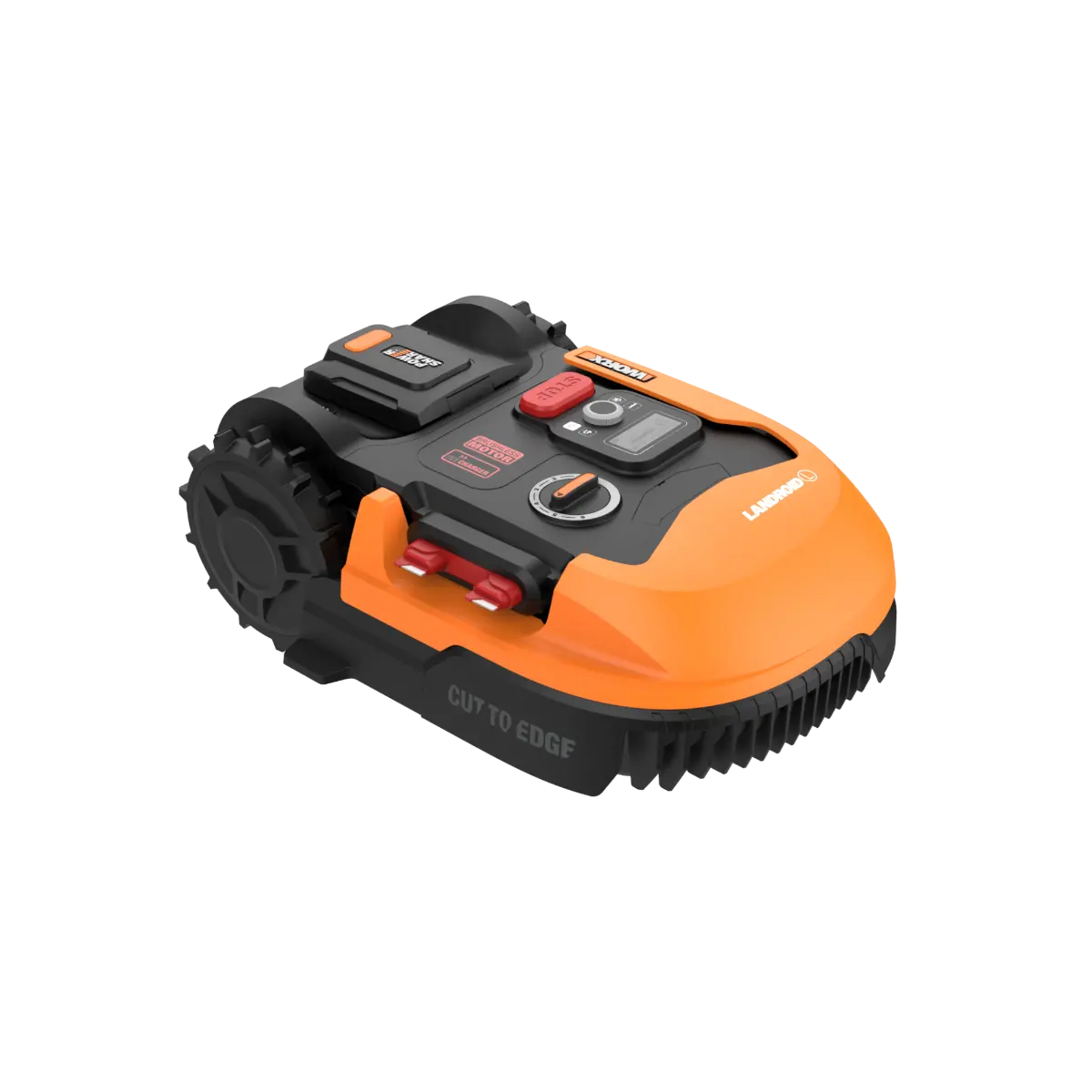
What to do when a robot mower firmware update fails
Check the mower’s status before you restart it. If the update has failed, look at power, the signal at the charging station and the next scheduled run. The supported recovery steps depend on the model.
Read the guide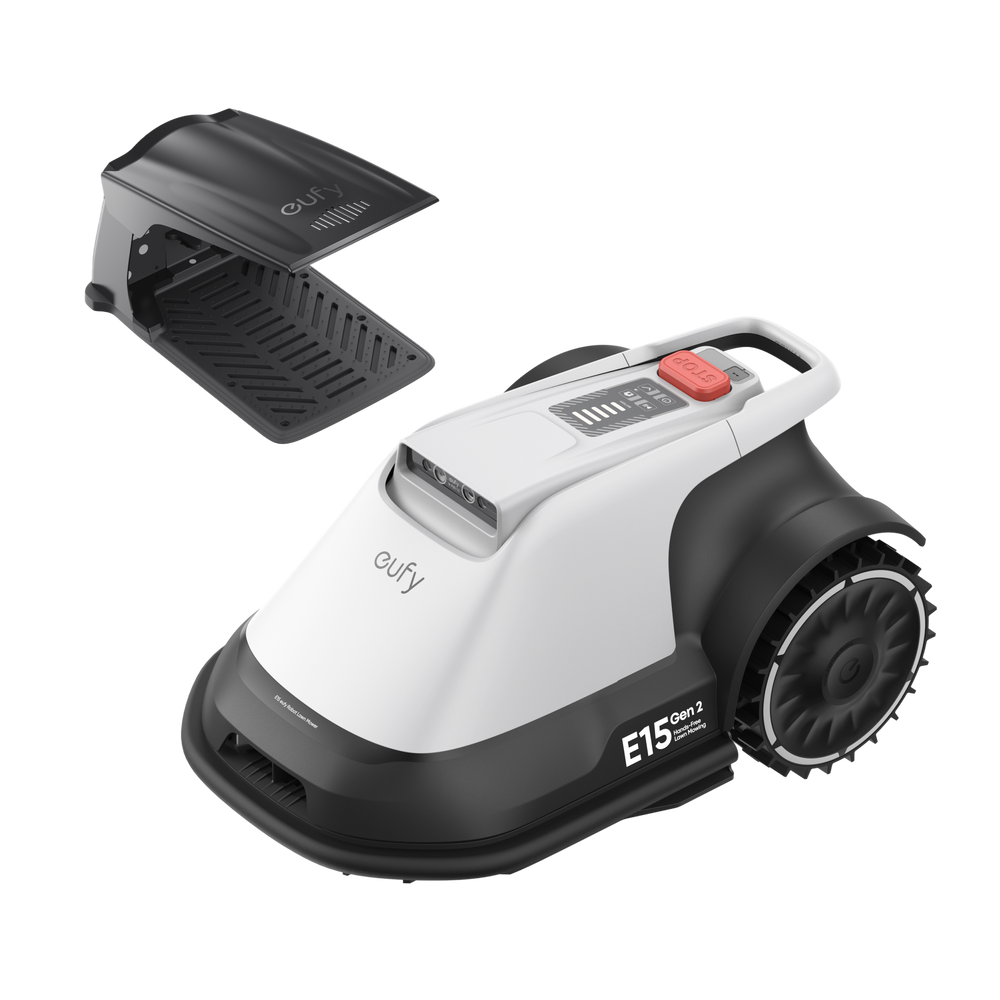
Why Won’t My Robot Mower Start?
A blank display, a locked control panel and a mower waiting for its schedule need different checks. We'd record the status first, then work through power, normal start controls, locks and the permitted operating conditions before assuming a motor has failed.
Read the guide