Mower setup and mapping · 4 min read
When should you remap a robot mower?
A new flower bed or a changed mowing direction may need an edit rather than a fresh map. Identify what changed, check the exact app tools and keep a record of the working installation before deleting anything.
Based on published manufacturer information.
Checked Nov 27 · In stock when checked. Shipping and tax at checkout.
Buy at Lowe’s See all offers & model details ↗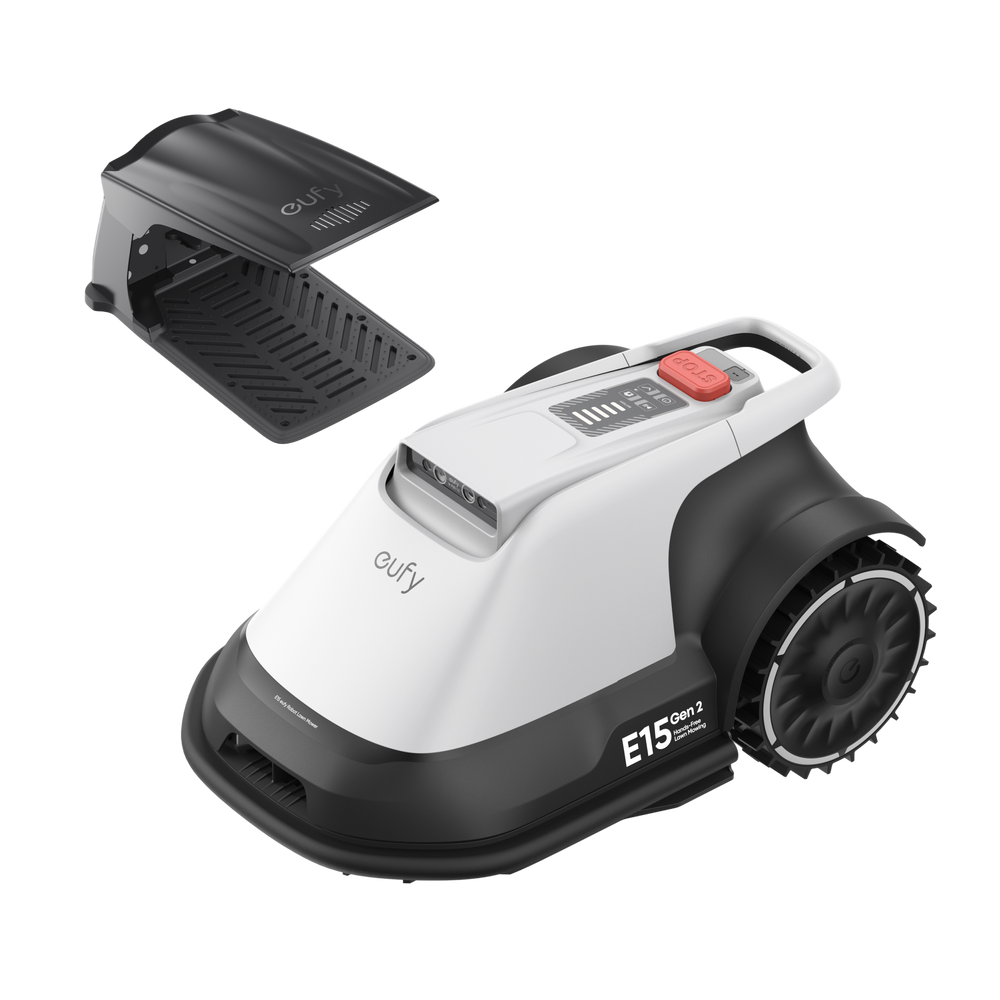
Checked Nov 27 · In stock when checked. Shipping and tax at checkout.
Buy at Lowe’s See all offers & model details ↗We may earn a commission when you buy through these links.
Our recommendations come from published specifications. We may earn a commission from qualifying purchases. As an Amazon Associate, we earn from qualifying purchases. How we work
The quick verdict
Here’s where we’d start.
Use a supported boundary, zone or station edit when it addresses the actual change. Recreate a map only when the exact instructions or support call for it, or the existing map cannot represent the revised lawn. Review restrictions and watch the next run before restoring routine mowing.
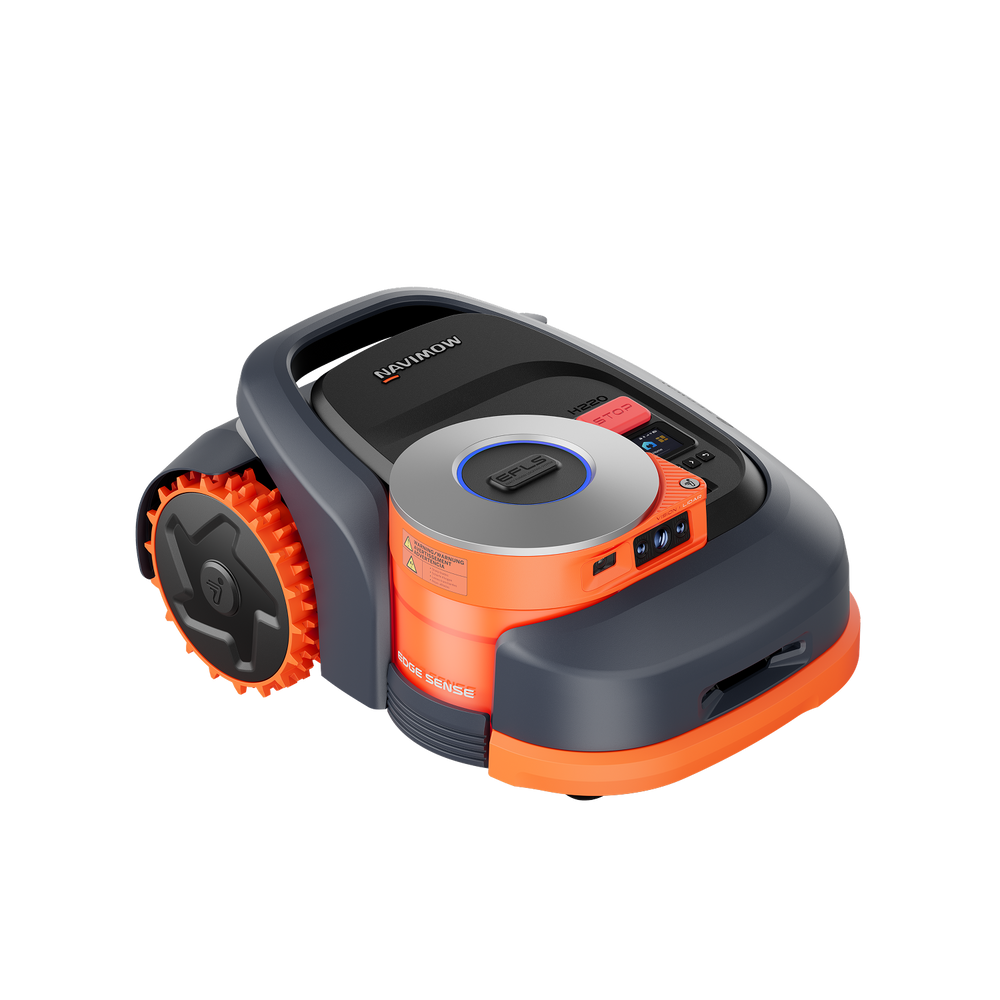
H210
The H2 US manual supports drawing a revised boundary or driving the mower to adjust it.
Remote editing has feature limits; deleting the map and relocating the dock are separate actions.
E15 Gen 2
The T280L manual distinguishes No-go, Must-Mow and No-Mow zones in Edit Map.
Use the restriction intended for the job; a similarly named zone does not establish the same behavior.
Write down what changed on the lawn
Separate a changed edge, a new restricted bed, a moved station and a connection problem. Each can require a different action. Save screenshots of the current map, restrictions and schedules before making changes.
If the trouble began with the dock move, use the station relocation guide alongside the exact mower instructions.
Use the H210’s targeted boundary tools
For Navimow H210, the US manual describes Adjust by drawing in Map management > Edit. It says drawing on the real-scene map does not require Bluetooth. Adjust by mower lets you drive a revised boundary.
Navimow’s separate deletion FAQ requires Bluetooth for deleting the map. Keep that destructive action distinct from an ordinary boundary edit.
Check which edit can be done remotely
Navimow’s internet-feature FAQ allows remote boundary changes but excludes adding or modifying Off-limit islands and channels from that remote workflow. Use the supported local procedure for those elements.
A failed remote edit does not by itself establish that the whole map needs replacing. See the connection guide if the app cannot reach the machine.
Choose the Gen 2 zone for the actual job
The eufy E15 Gen 2 T280L manual places No-go, Must-Mow and No-Mow tools in Edit Map. It identifies No-go zones and virtual fences for restricted entry, including vulnerable low beds.
Use the no-go guide when the purpose is keeping the mower out. Do not assume every mowing-priority or exclusion label supplies the same boundary behavior.
A new bed does not automatically require deleting the lawn
Imagine a six-by-four-foot planting bed added inside an otherwise unchanged lawn. That is 24 square feet to protect. A supported No-go zone or Off-limit island addresses the local change without making a new map the first step.
Check that the remaining route is wide enough and that the mower can return normally. The passage guide helps assess access around the bed.
Recreate the map when the supported edit cannot solve the change
For a major redesign, an unusable map or a manufacturer-directed recovery, follow the exact creation workflow. Confirm what will need to be recreated, including restrictions, connecting routes and schedules, before deleting the old map.
If the app will not save an edit, record the error and software versions for support. The firmware guide covers a separate update failure.
Check the next run through every changed area
Watch the revised edge, restricted area and return route, then confirm normal docking. Check the schedule and mowing settings before leaving the mower to its routine.
For an installation returning after storage, use the spring restart guide as well.
If a used mower is moving to a new owner, complete the account and tracking handover as well as checking the new map. The seller’s boundary does not approve the buyer’s site.
A closer look
The differences, in view.
Scroll horizontally on smaller screens. Values are manufacturer claims; see each product for qualifiers and original wording.
| Specification | H210 | E15 Gen 2 |
|---|---|---|
| Rated lawn coverage | 0.25 acreRecommended model-specific lawn size, not the expanded mapping allowance. | 0.2471 acresNormalized from 1,000 m² manufacturer coverage claim; not per-charge coverage. |
| Maximum slope | 45 % | Not confirmed |
| Navigation | LiDAR + network RTK + vision | TrueVision camera navigation |
| Maximum slope | Not confirmed | 18 °Visible mower setup FAQ; boundary-slope limit not specified. |
| Boundary setup | Not confirmed | No perimeter wire or RTK stationManufacturer configuration claim, not a guarantee of signal reliability. |
| Connectivity | Not confirmed | Wi-Fi setup; 4G supportedThe page does not establish this generation’s data subscription terms. |
| Cutting height | Not confirmed | 1–3 inE15 Gen2 T280L user guide, section 2.4; not transferred from the original E15. |
Ready to choose?
Your next step, made simple.
Checked Nov 27 · In stock when checked. Shipping and tax at checkout.
Buy at Lowe’s See all offers & model details ↗Checked Nov 27 · In stock when checked. Shipping and tax at checkout.
Buy at Lowe’s See all offers & model details ↗We may earn a commission when you buy through these links.
Show your work
Sources & editorial method.
We reviewed official US product information and exact configurations. Our advice draws on published specifications and model-specific manufacturer instructions, with the practical trade-offs explained. Unknowns and conflicting claims are kept visible. Prices above come from the catalog and may change independently of this article’s review date.
- Navimow official US model page
- eufy official US model page
- Navimow H2 US manual, local and drawn boundary editing
- eufy T280L Gen 2 manual, distinct work-zone tools
- Navimow H2 map editing versus deletion
- Navimow H2 remote editing feature restrictions
Published Nov 15, 2026 · Editorial review Nov 25, 2026.
Read our research standardsKeep exploring
A little more perspective.
How to restart a robot mower after winter
Before restoring last year’s schedule, check the machine, the charging station and the lawn it is returning to. A shifted dock or a newly planted bed needs attention even when the mower starts normally.
Read the guideHow to Set Up No-Go Zones for a Robot Mower
Start by walking the lawn and marking the places the mower must avoid, then use the exact model's mapping instructions. E15 Gen 2 no-go zones and Navimow H2 off-limit islands are useful examples, but their names and setup rules differ. Keep the route back to the charger in view too.
Read the guide