Setup guide · 3 min read
How to Set Up No-Go Zones for a Robot Mower
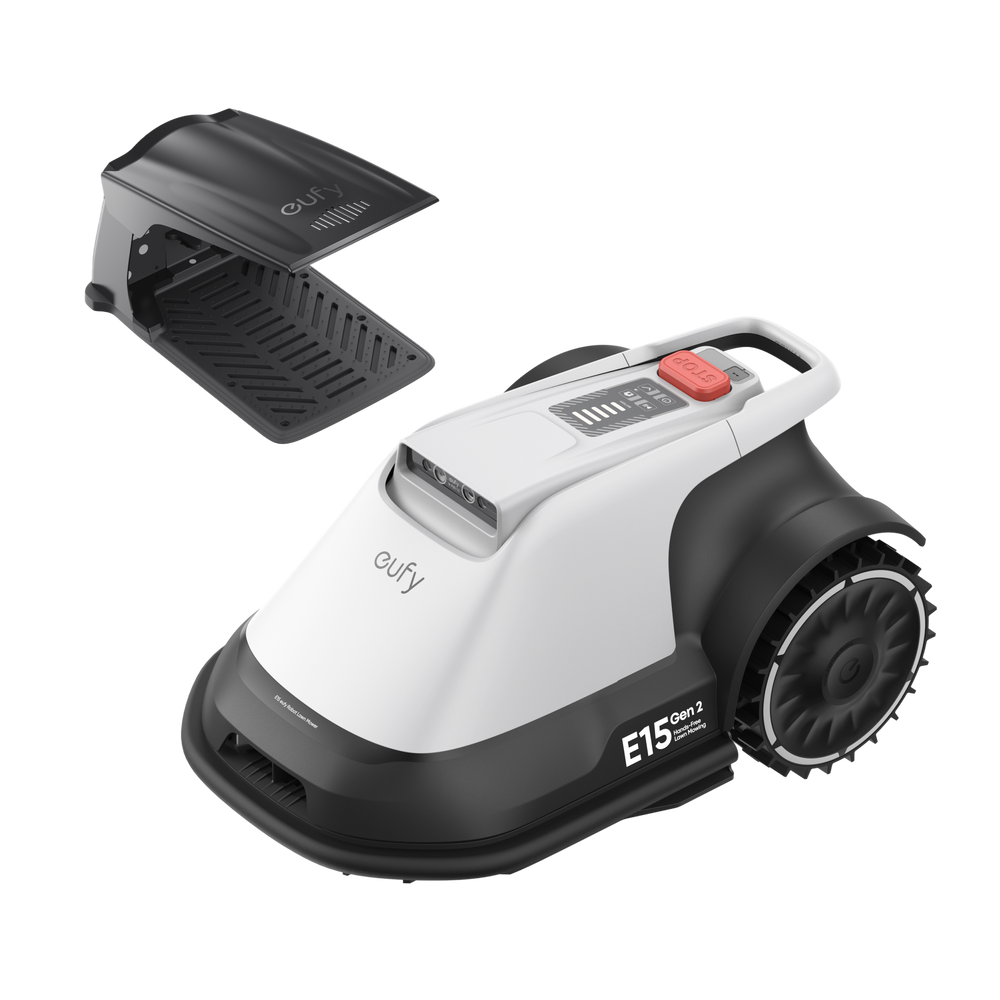
Start by walking the lawn and marking the places the mower must avoid, then use the exact model's mapping instructions. E15 Gen 2 no-go zones and Navimow H2 off-limit islands are useful examples, but their names and setup rules differ. Keep the route back to the charger in view too.
Based on published manufacturer information.
Checked Nov 27 · In stock when checked. Shipping and tax at checkout.
Buy at Lowe’s See all offers & model details ↗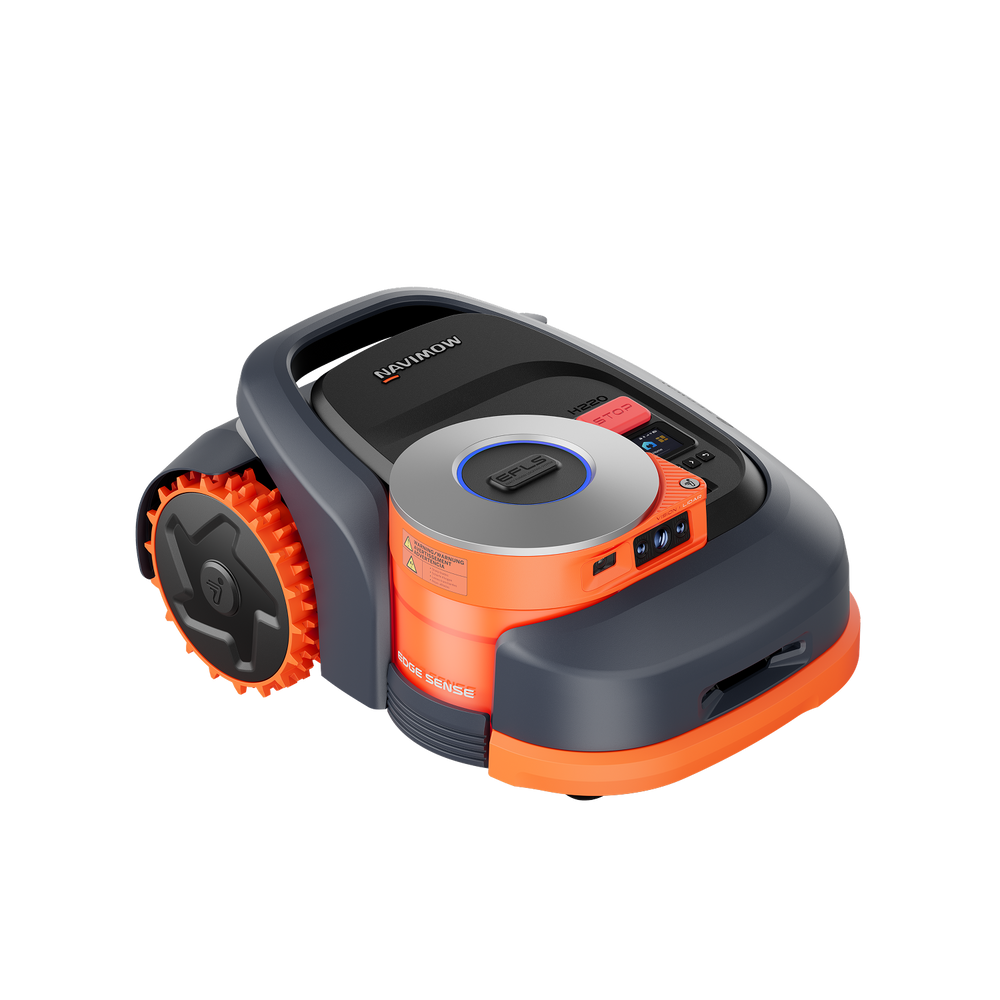
Checked Nov 27 · In stock when checked. Shipping and tax at checkout.
Buy at Lowe’s See all offers & model details ↗We may earn a commission when you buy through these links.
Our recommendations come from published specifications. We may earn a commission from qualifying purchases. As an Amazon Associate, we earn from qualifying purchases. How we work
The quick verdict
Here’s where we’d start.
Identify exclusions before mapping and follow the exact mower's setup flow. E15 Gen 2's manual recommends no-go zones and virtual fences before the first auto-mapping task. H2 uses off-limit islands and warns against auto mapping near pools, cliffs and other risky areas. A digital exclusion is not a substitute for the model's required physical protection or keeping people and pets clear. Check that excluded areas leave a supported route between lawns and back to charge.
E15 Gen 2
The T280L manual distinguishes no-go, must-mow and no-mow zones, with specific examples of hazards and protected areas.
Follow the current setup flow and preparation instructions; do not use a must-mow zone to force passage through a hazard.
H210
The US H2 manual describes off-limit islands for features such as flowerbeds, ponds, sprinkler heads and temporary objects.
Keep mapping restrictions and required protection around risky boundaries. An island does not approve a tight or unsafe connecting route.
Walk the lawn before drawing on the map.
List the beds, water edges, low objects, hoses, loose cables and places where the mower could become trapped. Include temporary items as well as permanent features. Photograph unclear edges so you can check them against the exact manual or ask the installer.
Remove ordinary loose debris and follow the maker's required protection around hazards. A zone on a screen doesn't replace those preparation steps. Our mower-stuck guide covers recurring trouble after the installation has been checked.
Our first-run preparation guide puts those exclusions alongside the model’s initial grass-height limit, debris checks and station route.
Our pond-and-pool boundary guide checks the water edge and every connecting route before automatic operation. A saved exclusion does not independently approve the narrow strip used to reach another lawn.
E15 Gen 2 gives three zone names different jobs.
eufy E15 Gen 2's T280L manual recommends setting up no-go zones and virtual fences before the first auto-mapping task. Its examples include water edges, valuable plants, small obstacles, low beds and areas where the mower may get stuck or cause damage.
The same manual describes must-mow zones for grass needing priority and no-mow zones for areas where cutting is not needed. Use the current in-app guide for the right control; a priority setting is not a way to override a hazard. Our uncut-patch guide addresses grass that remains within a supported work area.
H2 calls its exclusions off-limit islands.
Navimow H210's US H2 manual describes off-limit islands, also called BioLife islands, for features such as flowerbeds, ponds and sprinkler heads. It also gives temporary objects as examples, with the island removable after the object has gone.
That does not make every boundary suitable for automatic mapping. The manual warns against auto mapping near pools, cliffs and other risky areas or where the perimeter is unclear. Follow the exact preparation and protection instructions rather than relying on a camera to invent the boundary.
The mower-and-sprinkler guide connects exclusions to the watering schedule and return route. Timing alone does not establish the required distance from a head.
Leave a workable route around the exclusions.
Look at the whole journey after adding an island. Can the mower still reach the next lawn, turn around and return to charge? A bed or temporary object can leave a pinch point even when there appears to be grass on both sides.
Keep passage and channel requirements specific to the model. Our narrow-passage guide and driveway-crossing guide explain the measurements to confirm, rather than assume a line drawn in the app approves the physical route.
Our exposed-root guide works through roots crossing the only charger approach. An exclusion that removes the route home needs an assessed alternative, rather than deletion to make the old timer work.
Review the saved map using the supported setup procedure.
Follow the model's mapping and first-run instructions with people and pets clear. Check that the exclusions are saved, the intended lawns remain included and the route home is supported. If the app won't let you complete a required exclusion at the stated setup stage, ask support before continuing into that area.
Don't disable detection or repeatedly redraw around a dangerous feature to make the mower pass. Our return-to-station guide helps separate a blocked route from a docking problem.
Recheck exclusions when the lawn changes.
Review the map after moving furniture, adding a bed or changing a gate or irrigation setup. Remove a temporary exclusion only when the object and any remaining hazard are gone, following the model's editing instructions.
Keep notes of the changed area and any message if support is needed. Our separate-lawns guide and charger-placement guide help check whether an edit has affected the wider route.
For a new mower purchase, our Roborock X1/X1 LiDAR comparison also flags functions described as upcoming OTA updates. Confirm the delivered firmware before relying on advertised mapping or obstacle features.
Our station-relocation guide keeps the existing exclusions in the review when the charger moves. A shorter route home is not a reason to remove a protected area.
Our overseeding guide works through a seed strip across the only route to the charger. Leaving grass uncut and preventing the mower from entering are different requirements.
When a change involves the reference antenna, use the RTK relocation guide to check whether the map needs rebuilding. Save the old exclusion and channel details so you can redraw them accurately.
Before deleting a working map, read when to edit or remap a robot mower. A supported restriction can address a new bed while station relocation remains a separate task.
A closer look
The differences, in view.
Scroll horizontally on smaller screens. Values are manufacturer claims; see each product for qualifiers and original wording.
| Specification | E15 Gen 2 | H210 |
|---|---|---|
| Rated lawn coverage | 0.2471 acresNormalized from 1,000 m² manufacturer coverage claim; not per-charge coverage. | 0.25 acreRecommended model-specific lawn size, not the expanded mapping allowance. |
| Maximum slope | 18 °Visible mower setup FAQ; boundary-slope limit not specified. | Not confirmed |
| Navigation | TrueVision camera navigation | LiDAR + network RTK + vision |
| Boundary setup | No perimeter wire or RTK stationManufacturer configuration claim, not a guarantee of signal reliability. | Not confirmed |
| Connectivity | Wi-Fi setup; 4G supportedThe page does not establish this generation’s data subscription terms. | Not confirmed |
| Cutting height | 1–3 inE15 Gen2 T280L user guide, section 2.4; not transferred from the original E15. | Not confirmed |
| Cutting width | 8 inE15 Gen2 T280L specification table. | Not confirmed |
Ready to choose?
Your next step, made simple.
Checked Nov 27 · In stock when checked. Shipping and tax at checkout.
Buy at Lowe’s See all offers & model details ↗Checked Nov 27 · In stock when checked. Shipping and tax at checkout.
Buy at Lowe’s See all offers & model details ↗We may earn a commission when you buy through these links.
Show your work
Sources & editorial method.
We reviewed official US product information and exact configurations. Our advice draws on published specifications and model-specific manufacturer instructions, with the practical trade-offs explained. Unknowns and conflicting claims are kept visible. Prices above come from the catalog and may change independently of this article’s review date.
- Manufacturer US model page — exact configuration, specifications and qualifications
- Manufacturer US model page — exact configuration, specifications and qualifications
- eufy E15 Gen 2 T280L manual — no-go zones, virtual fences and work-zone settings
- Navimow H2 US manual — off-limit islands, mapping preparation and channels
Published Nov 4, 2026 · Editorial review Nov 15, 2026.
Read our research standardsKeep exploring
A little more perspective.
Can a Robot Mower Cross a Driveway Between Lawns?
Some robot mowers can travel between mapped lawns, but a pathway feature doesn't approve every driveway. Check the surface, level changes, route width and vehicle access before buying. E15 Gen 2 pathways and Navimow H2 channels show why the answer needs to stay specific to the mower and the route.
Read the guideHow to Prepare Your Lawn for a Robot Mower’s First Run
Clear the loose objects, check the starting grass height and settle the boundaries before launching the first map. E15 Gen 2 and Navimow H2 give different initial-grass instructions, so a robot's maximum selectable cut isn't the preparation limit. Allow time to learn its normal route and return to charge.
Read the guide